
How I Cut 90 Minutes Off My Workday by Building an AI System for Email and Meetings
Most AI productivity advice hands you prompts you forget to use. This is a system instead: three short routines (morning email triage, a pre-meeting brief, and post-meeting action extraction) that fire on triggers, not willpower. Setup takes one afternoon. It saves 60 to 90 minutes a day.
Akhilesh Angadi
Founder of NeuralSutras · writes about practical AI & software · 20 July 2026
TL;DR: Most AI productivity advice hands you prompts you forget to use. This is a system instead: three short routines (morning email triage, a pre-meeting brief, and post-meeting action extraction) that fire on triggers, not willpower. Setup takes one afternoon. It saves 60 to 90 minutes a day.
Most AI productivity advice sounds like this: "Use this prompt to write your emails faster."
And it works, once. Then you forget the prompt, go back to the old way, and nothing actually changes.
The prompt isn't the problem. A single prompt isn't a system. It's a trick you have to remember to use. This is about the system: a routine that runs quietly in the background of your day, every day, that you set up once and then just follow.
For most office workers, email and meetings eat 3 to 4 hours of every workday. (Microsoft Work Trend Index) That's a big problem, and a very solvable one. Here's how I cut 90 minutes off mine.
Why most people's AI experiments don't stick
People use AI reactively: when they remember to, when they're stuck, when a task feels bad enough to try something. The results are inconsistent. Sometimes helpful, never transformative.
A system is different. It decides when AI gets used, how, and what happens to the output, all in advance. You don't decide in the moment. You follow the routine. Mine has three:
- Morning email triage
- Pre-meeting brief
- Post-meeting action extraction
Together they give back about 90 minutes a day. Here's each one.
The tools you need (all free)
| Tool | Purpose | Cost |
|---|---|---|
| ChatGPT, Claude, or Gemini | Email drafting, summarising | Free tier is fine |
| Otter.ai or Fireflies.ai | Meeting transcription | Free tier (limited hours) |
| Your existing email client | Gmail, Outlook, whatever | You already have it |
No new app to buy, nothing to integrate. This works with what you use today.
Routine 1: Morning email triage
Saves ~45 minutes/day.
Most people open the inbox and work top to bottom, deciding and replying as they go. That's the slowest possible way, because you're making a fresh call on every message: reply now, defer, delete, forward?
The AI version splits reading, deciding, and replying into three quick passes.
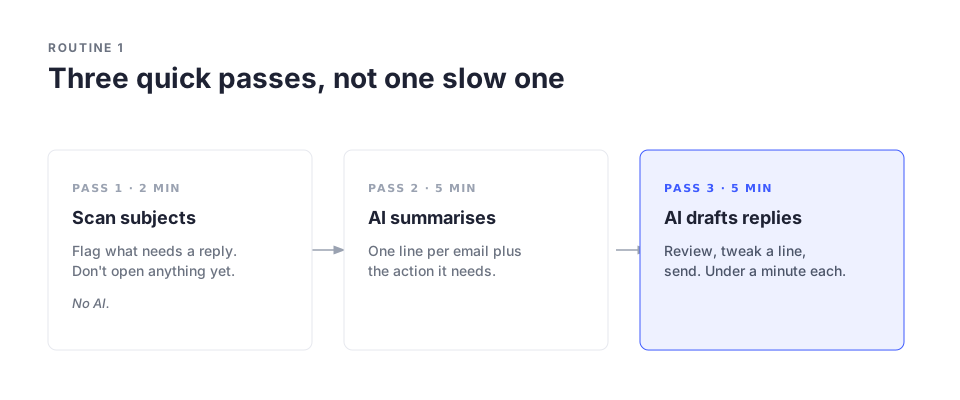
Pass 1, scan (2 min, no AI). Skim subject lines. Flag what needs a reply today. Don't open anything yet.
Pass 2, summarise (5 min, AI). Open the flagged emails and run this on each:
"Summarise this email in one sentence and tell me what action it needs from me, if any."
Sounds trivial. It isn't. A four-paragraph email collapses to "Wants your approval on the Q3 budget by Friday." That's all you actually need to process.
Pass 3, draft (5 min, AI). For each action, draft the reply:
"Write a [short / detailed] reply to this email. The point I want to make is: [your point]. Professional but direct."
Review, tweak a sentence or two, send. Most replies take under a minute this way.
The real win here isn't speed. It's cognitive load. Reading, deciding, and composing all at once is exhausting. Split into focused passes, the inbox stops draining you, and you close it feeling done rather than buried.
Routine 2: Pre-meeting brief
Saves ~15 minutes/day.
Most meetings open with five minutes of "let me find where we left off": someone scrolling notes, someone hunting for the shared doc, someone trying to recall what was decided three weeks ago.
The brief kills that. It's a two-minute summary you read five minutes before the meeting.
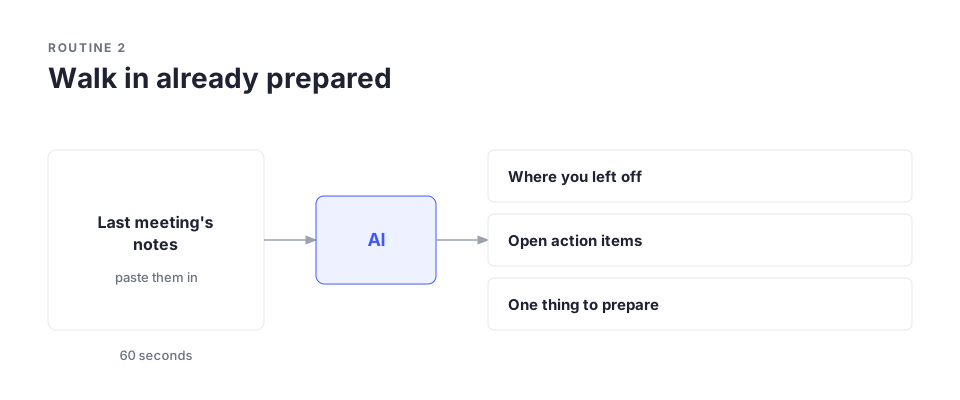
Open your notes from last time (or paste the email thread, doc, or Slack thread) and run:
"I have a meeting about [topic] shortly. Here are my notes from last time: [paste]. Give me (1) a one-sentence summary of where we left off, (2) any open decisions or action items, and (3) one thing I should raise or be ready for."
Thirty seconds to read. You walk in knowing what matters. One brief doesn't change much, but across four meetings a day it turns 15 to 20 minutes of scrambling into about 4, and you're better prepared than before.
Routine 3: Post-meeting action extraction
Saves ~30 minutes/day.
This is the one people skip, and it's the most expensive skip. For about two hours after a meeting, you still remember what was decided and what you committed to. Miss that window and it's gone: you either forget it or spend ten minutes reconstructing it later. Across four meetings, that's 40 minutes a day rebuilding context that took two minutes to capture.
If you use a transcription tool, this is nearly automatic. Open the transcript and run:
"Here's a meeting transcript. Extract (1) all decisions made, (2) all action items with the owner if mentioned, and (3) any open questions."
No transcript? Record a two-minute voice note the moment the meeting ends, just say out loud what was decided and what you owe, then paste the auto-transcribed text into the same prompt.
The output is a clean record: decisions, actions, open questions. Drop it into your task manager. Beyond the time saved, this changes how reliable you are. Nothing falls through, you follow up on things others forget, and colleagues notice. That's not small.
Putting it together
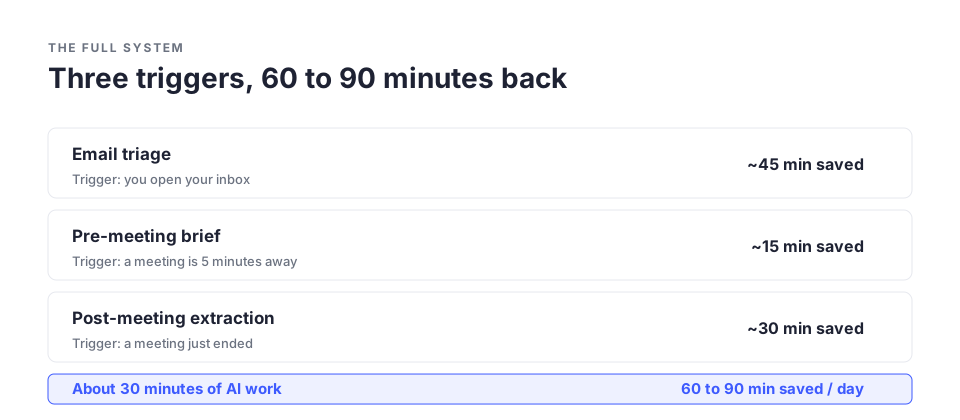
| Time | Routine | AI used | Duration |
|---|---|---|---|
| 8:00 AM | Morning email triage | ChatGPT / Claude | 10-15 min |
| 5 min before each meeting | Pre-meeting brief | ChatGPT / Claude | 2 min |
| Right after each meeting | Action extraction | Otter.ai + ChatGPT / Claude | 3 min |
| 5:00 PM | Final email pass | ChatGPT / Claude | 10 min |
About 30 minutes of AI-assisted work. Sixty to ninety minutes saved, depending on your meeting load.
The one thing that makes it stick
Most productivity systems fail because they assume a frictionless life you don't have. This one works because each routine has a trigger:
- Opening your inbox triggers triage.
- A meeting five minutes out triggers the brief.
- A meeting ending triggers extraction.
You never have to remember. The moment tells you. The first week feels deliberate. By week two it runs itself.
Honest caveats
- It won't cut your meeting count. If your calendar is genuinely too full, no workflow fixes that. You have to decline more or block focus time.
- Transcription quality varies. Clear audio in a quiet room works well; background noise, strong accents, and heavy jargon drop accuracy. Skim the transcript before trusting it.
- Drafts still need you. AI is good at structure and tone, weaker on nuance, relationships, and anything politically sensitive. Read before you send.
Practical checklist
Setup (once)
- Pick your AI tool for drafting (ChatGPT, Claude, or Gemini)
- Sign up for Otter.ai or Fireflies.ai
- Turn on auto-transcription for your next meeting
Daily
- Triage: scan subjects, summarise the flagged ones, draft replies, review before sending
- Before each meeting: run the brief, read for 30 seconds
- After each meeting: extract decisions and actions, drop them in your task manager
Key takeaways
- Most AI productivity advice fails because single prompts aren't systems.
- A system decides when and how AI is used, in advance.
- Three routines cover most email and meeting overhead: triage, brief, extraction.
- Every tool you need is free: an AI chatbot, Otter.ai or Fireflies, and your existing email.
- Triggers make it automatic within two weeks.
- The biggest gain is less cognitive load and fewer dropped commitments, not raw speed.
- It won't fix a calendar that's too full. That's a different problem.
The bottom line
The goal isn't to automate your job. It's to strip out the parts that drain your attention without needing your judgment, the reading, the summarising, the note-taking, so the parts that do need you get more of you.
Email and meetings are almost entirely that first category. They cost time, but most of that time isn't thinking. It's admin. Three short routines, run consistently, hand the admin back.
Frequently Asked Questions
Does this work with Gmail and Outlook? Yes. It's client-agnostic. You copy text into an AI chat window. No plugins.
Which AI is best for drafting? All three work. Claude tends to sound the most natural with the least editing. ChatGPT is faster and more familiar. Gemini fits if you live in Google Workspace. Try one on your real emails and switch if it feels off.
Is it safe to paste work emails into ChatGPT? Depends on your company's policy and the content. Keep out confidential client data, employee information, and proprietary details. For sensitive threads, write it yourself or use a local AI tool. See Is ChatGPT Safe to Use?
What if my company doesn't allow AI tools? Check the policy first. Many companies are still writing theirs. If yours hasn't, ask IT or legal before using work data.
Can I use this for Slack? Yes. The summarise-and-draft approach works on long threads too. Paste and run the same prompts.
Further Reading
- Microsoft Work Trend Index: research on how AI is changing email and meeting patterns
- Otter.ai docs: setting up automatic transcription
- Fireflies.ai: an alternative transcription tool
- Cal Newport, A World Without Email (Portfolio, 2021): why reactive email is so costly to focus
- David Allen, Getting Things Done: the original trigger-based capture system this adapts
What's Next
- Which AI tool fits your role? Best AI Tool for Your Job, by Role
- A full AI second brain for everything you learn (coming soon)
Enjoyed this guide? Subscribe to the NeuralSutras newsletter for one practical AI lesson every Sunday, and follow our YouTube channel for step-by-step tutorials.
NeuralSutras. Practical AI for Everyone. Have a question or correction? We want to know: hello@neuralsutras.com
Akhilesh Angadi
Founder of NeuralSutras · writes about practical AI & software. Every NeuralSutras guide is tested, honest about limitations, and written to stay useful long-term.
One practical AI lesson, every week
No hype. No news roundups. Just one actionable guide on using AI to work smarter, every Sunday.
Subscribe free →