
How to Run AI Locally on Your Laptop: No API Costs, No Data Leaving Your Device (Ollama Guide)
Ollama runs AI models directly on your laptop, with no internet needed and nothing leaving your device. It's free, takes about 20 minutes to set up, and works on most Windows and Mac laptops from the last five years. If you handle confidential data, it's the AI tool to use for that work.
Akhilesh Angadi
Founder of NeuralSutras · writes about practical AI & software · 3 August 2026
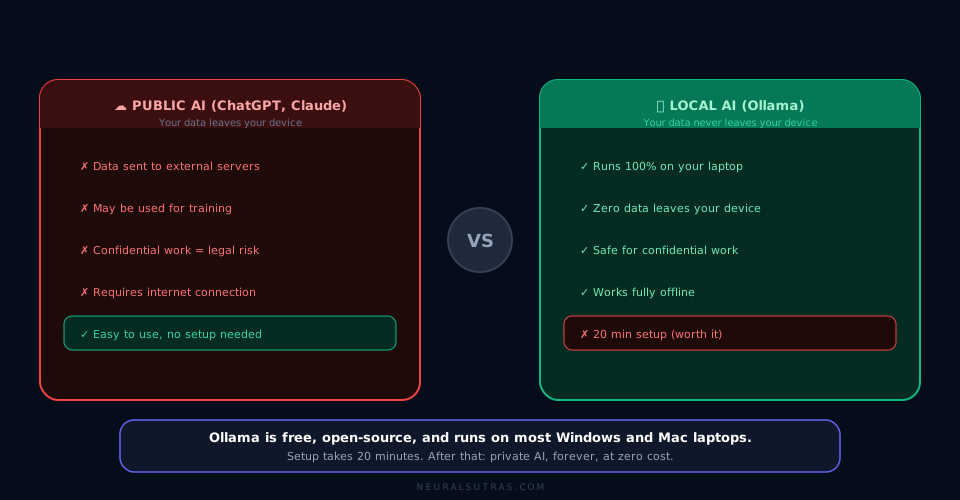
TL;DR: Ollama runs AI models directly on your laptop, with no internet needed and nothing leaving your device. It's free, takes about 20 minutes to set up, and works on most Windows and Mac laptops from the last five years. If you handle confidential data, it's the AI tool to use for that work.
You've been told ChatGPT is useful for work, and it is. But there's a kind of work where you can't touch it, where the moment you paste something you've created a legal risk or a confidentiality breach.
Client financial data. Patient records. Internal strategy. Proprietary code. Privileged communications. For all of that, ChatGPT is off the table. Not because it's bad at AI, but because it's a public service: everything you type goes to OpenAI's servers, where it may be reviewed or used for training.
Ollama fixes this. It runs AI models entirely on your laptop. Nothing goes anywhere. Your data stays on your device, full stop. Here's how to set it up.
What is Ollama?
Ollama is a free, open-source tool that runs large language models (the same kind of AI behind ChatGPT) on your own computer. (Ollama on GitHub)
The difference from ChatGPT is where the work happens. With ChatGPT, your message travels to OpenAI's servers, gets processed, and comes back. With Ollama, your laptop does the processing and the response comes straight back. No servers, no internet after the first download, nothing leaving your machine.
The quality is strong enough for writing, summarising, analysing documents, and answering questions. How good depends on the model and your hardware, but for most professional work it's more than enough. You'll notice the gap only on the most complex reasoning or very long documents.
Note: Ollama isn't the only option. LM Studio offers a graphical interface for the same job. This guide uses Ollama because it's free, open-source, beginner-friendly, and pairs cleanly with OpenWebUI. Either reaches the same privacy goal.
Who actually needs this?
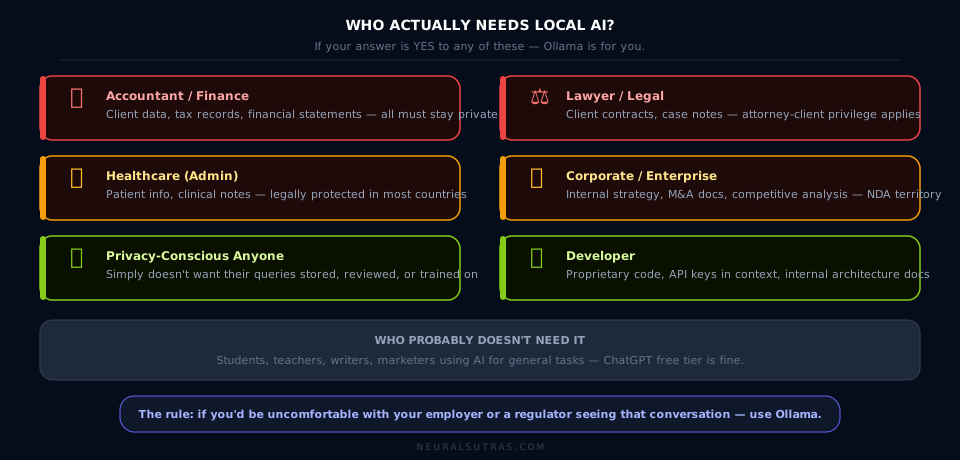
You need Ollama if you're an accountant or bookkeeper (client financial data is confidential), a lawyer (privilege covers everything), in healthcare admin (patient data is legally protected), in a corporate role handling strategy, M&A, or board material, a developer whose code holds keys or business logic, or simply privacy-conscious and done with your queries being stored and reviewed.
You probably don't need it if you mostly use AI for general writing, public research, learning, and personal productivity. ChatGPT's free tier handles that fine.
What you need
- OS: Windows 10/11 or macOS 12+
- RAM: 8GB minimum (see the table below)
- Storage: 5 to 10GB free for models
- Internet: only for the first download
- GPU: not required. Ollama runs on CPU; a GPU just makes it faster and it's used automatically if you have one.
| RAM | Recommended model | Notes |
|---|---|---|
| 8 GB | Llama 3.2 3B | Runs on virtually any recent laptop |
| 16 GB | Mistral 7B | Better reasoning, longer documents |
| 32 GB+ | Llama 3.1 8B or larger | Best local quality |
Not sure how much RAM you have? On Windows: Task Manager, Performance, Memory. On Mac: Apple menu, About This Mac, Memory.
Step-by-step setup (about 20 minutes)
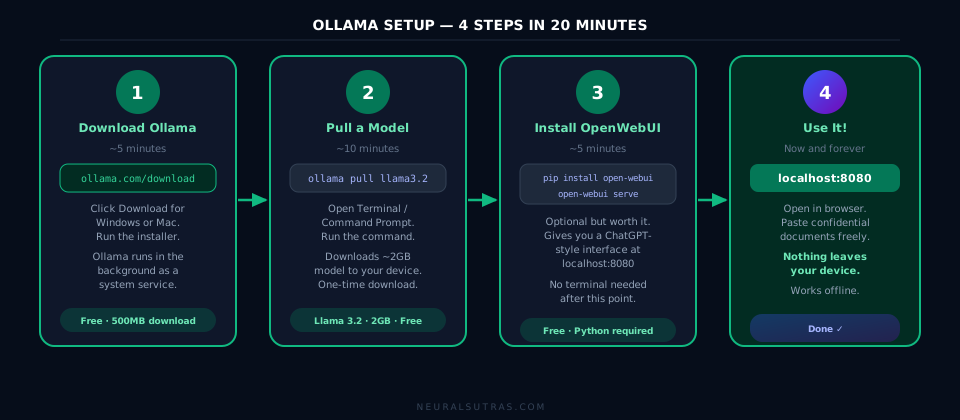
Step 1: Install Ollama (~5 min)
Go to ollama.com and download the installer. On Windows, run the .exe; Ollama appears in your system tray. On Mac, open the .dmg and drag it to Applications. It then runs quietly in the background with no window, which is normal.
To check it's running, open http://localhost:11434 in a browser. "Ollama is running" means Step 1 is done.
Step 2: Download a model (~10 min)
Open Terminal (Mac: Cmd+Space, type "Terminal") or Command Prompt (Windows: Win+R, type "cmd") and run:
ollama pull llama3.2
That pulls the Llama 3.2 model (~2GB) to your device, once. To try it right away:
ollama run llama3.2
Type a question, press Enter, and you're running AI entirely on your own laptop. Press Ctrl+D to exit.
Step 3: Install OpenWebUI (~5 min, recommended)
The command line works, but for daily use you want a ChatGPT-style interface in your browser. OpenWebUI gives you that, running locally and connecting to Ollama automatically.
It needs Python. Check with python --version, then run:
pip install open-webui
open-webui serve
Open http://localhost:8080, create an account (stored locally, nothing sent anywhere), pick your model, and start chatting. No Python? Get it free from python.org, then run the commands above.
Step 4: Use it
From now on, Ollama runs in the background whenever your computer is on. Open http://localhost:8080, start a conversation, and paste whatever you need: confidential documents, code, client data. Nothing leaves your device.
The first response is slower than ChatGPT, since your laptop is doing the work instead of a data centre. It speeds up after that. On a 2022-era laptop with 16GB RAM, expect 5 to 15 seconds for a paragraph.
Which model should you use?
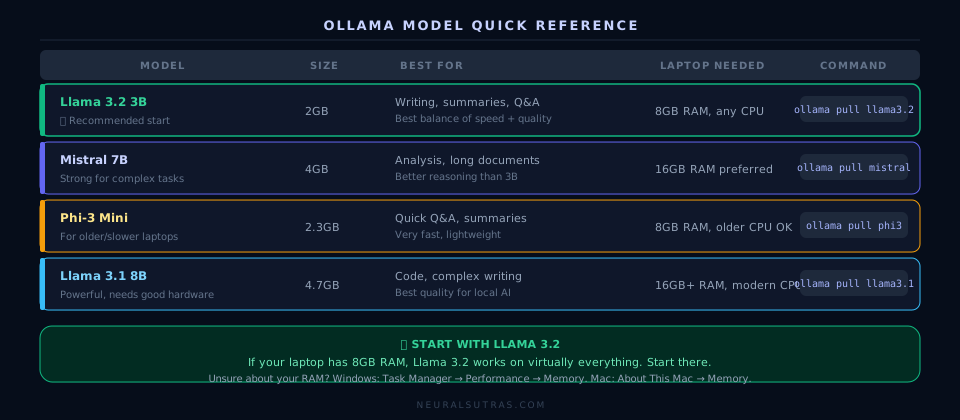
Start with Llama 3.2. It's the best balance of capability and speed for most laptops. If it runs well and you want more power for longer documents, try Mistral 7B:
ollama pull mistral
You can keep several models installed and switch between them in OpenWebUI.
What you can actually do with it
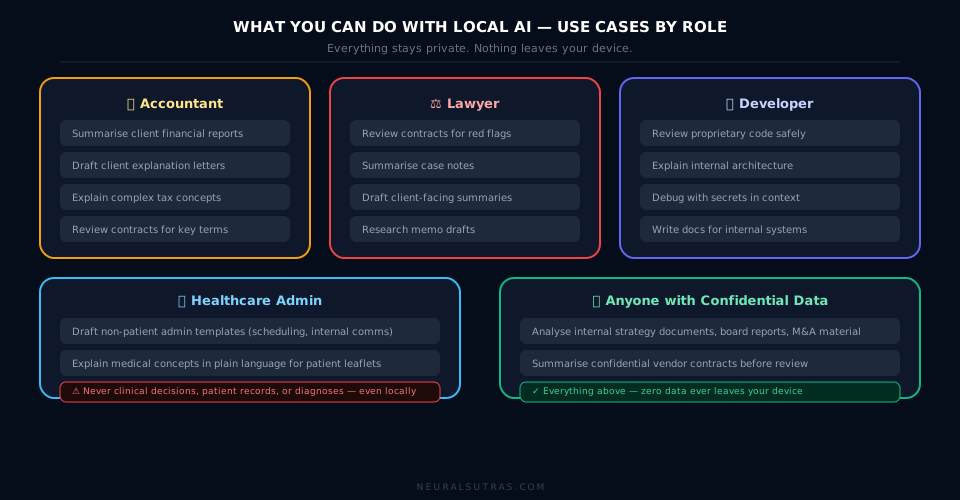
Accountants: summarise a client's financial report in plain language, draft a letter explaining their tax position, review a contract for financial implications.
Lawyers: paste a contract and ask for the key obligations and risks, turn case notes into a client brief, draft a memo from confidential research.
Developers: paste proprietary code with keys still in it (no risk), have it explain internal architecture, debug functions full of sensitive business logic.
Healthcare (admin only): draft non-patient templates, explain terminology for patient-facing materials. Never use any AI, local or not, for clinical decisions, diagnoses, or medication guidance. Local AI removes the privacy risk for admin work; it doesn't change the clinical rule.
Anyone with confidential data: analyse internal strategy, summarise board or investor material, draft responses to confidential proposals.
Honest limitations
- Speed: local models are slower. Expect 5 to 15 seconds per response on an average laptop, faster on newer hardware.
- Capability: smaller models (3B) handle writing, summarising, and Q&A well; larger ones (7B+) do more nuanced analysis. Roughly, a small local model sits around mid-range cloud AI: fine for most work, weaker on complex reasoning.
- Context length: local models take shorter inputs than the latest cloud models, so very long documents may need to go in sections.
- Setup: 20 minutes, more than signing up for ChatGPT, but worth it for the work above.
Practical checklist
- RAM check: 8GB or more?
- Download Ollama from ollama.com
- Run
ollama pull llama3.2 - Confirm
http://localhost:11434shows "Ollama is running" - Install OpenWebUI:
pip install open-webui, thenopen-webui serve - Open
http://localhost:8080and create a local account - Test with a non-sensitive document first
- Note the confidential tasks you'll now route through Ollama
Key takeaways
- Ollama runs AI entirely on your device. Nothing goes anywhere.
- Free, open-source, and works on most laptops from the last five years.
- Setup is 20 minutes: install Ollama, pull a model, add OpenWebUI.
- Quality depends on the model and hardware; larger models approach cloud quality.
- It's the right tool for anyone handling data they can't share with a third party.
- OpenWebUI gives you a browser chat at localhost:8080.
- Start with Llama 3.2, move to Mistral 7B if you need more.
- Expect slower responses than the cloud, around 5 to 15 seconds.
The bottom line
ChatGPT is genuinely excellent across a wide range of tasks. But "wide range" has a hard edge: anything involving data you're not allowed to share with a third party.
For years that edge meant some professionals couldn't use AI at all, not because the tools were weak, but because the privacy rules were incompatible with cloud services. Ollama removes the barrier. You get help with your most sensitive work, and no one else ever sees it: not OpenAI, not Anthropic, not your internet provider. The 20-minute setup is the only cost. After that, it just runs.
Frequently Asked Questions
Does Ollama work offline? Yes, fully. Once the models are downloaded, it works with no internet. That's part of the point.
Is it really free? Completely. Open-source under the MIT licence, and the models are free too. Your only cost is electricity and a few GB of storage per model.
How does the quality compare to ChatGPT? It depends on the model and hardware. Small models (Llama 3.2 3B) are fast and fine for everyday tasks; larger ones produce noticeably better output. For writing, summarising, and Q&A it's very capable; for complex reasoning or long documents you'll notice the difference.
Can I run it on a work laptop? Usually, since it often doesn't need admin rights, but check your company's policy. IT may actually prefer it: data stays on-device instead of going to external services.
What if I get a new laptop? Reinstall Ollama and re-pull the models (about 10 minutes). Your OpenWebUI history is stored locally and can be exported.
Further Reading
- Ollama on GitHub: source and full model list
- OpenWebUI documentation: full interface setup
- freeCodeCamp: run open-source LLMs on your own computer
- Is ChatGPT Safe to Use?: what not to share with public AI
- Best AI Tool for Your Job, by Role: when Ollama is the right pick
What's Next
- Is ChatGPT Safe to Use?: what should never go into a public AI
- What Are MCP Servers? (coming soon): connect Ollama to your files and tools for a true private assistant
Enjoyed this guide? Subscribe to the NeuralSutras newsletter for one practical AI lesson every Sunday, and follow our YouTube channel for step-by-step tutorials.
NeuralSutras. Practical AI for Everyone. Have a question or correction? We want to know: hello@neuralsutras.com
Akhilesh Angadi
Founder of NeuralSutras · writes about practical AI & software. Every NeuralSutras guide is tested, honest about limitations, and written to stay useful long-term.
One practical AI lesson, every week
No hype. No news roundups. Just one actionable guide on using AI to work smarter, every Sunday.
Subscribe free →